
KeyMod
KVM-GO update: control your target from your phone with KeyCmd 0.19
- KVM-GO
- KeyCmd
- Product Updates
- Android
- USB
- Bluetooth
- Keyboard
- Gamepad
- Release
Hi everyone,
Thank you for backing KVM-GO and for your patience as units move through production and shipment. We know many of you are still waiting on hardware, and we want your setup to feel complete from day one.
Alongside the Openterface KVM app (video and full KVM control on your phone or tablet), we have been improving KeyCmd, our companion app for keyboard, mouse, gamepad, and shortcut input. KeyCmd 0.19 is the build we recommend today if you use KVM-GO. Pair over USB or Bluetooth, install on top of any previous build, and your settings, profiles, and paired devices carry over.
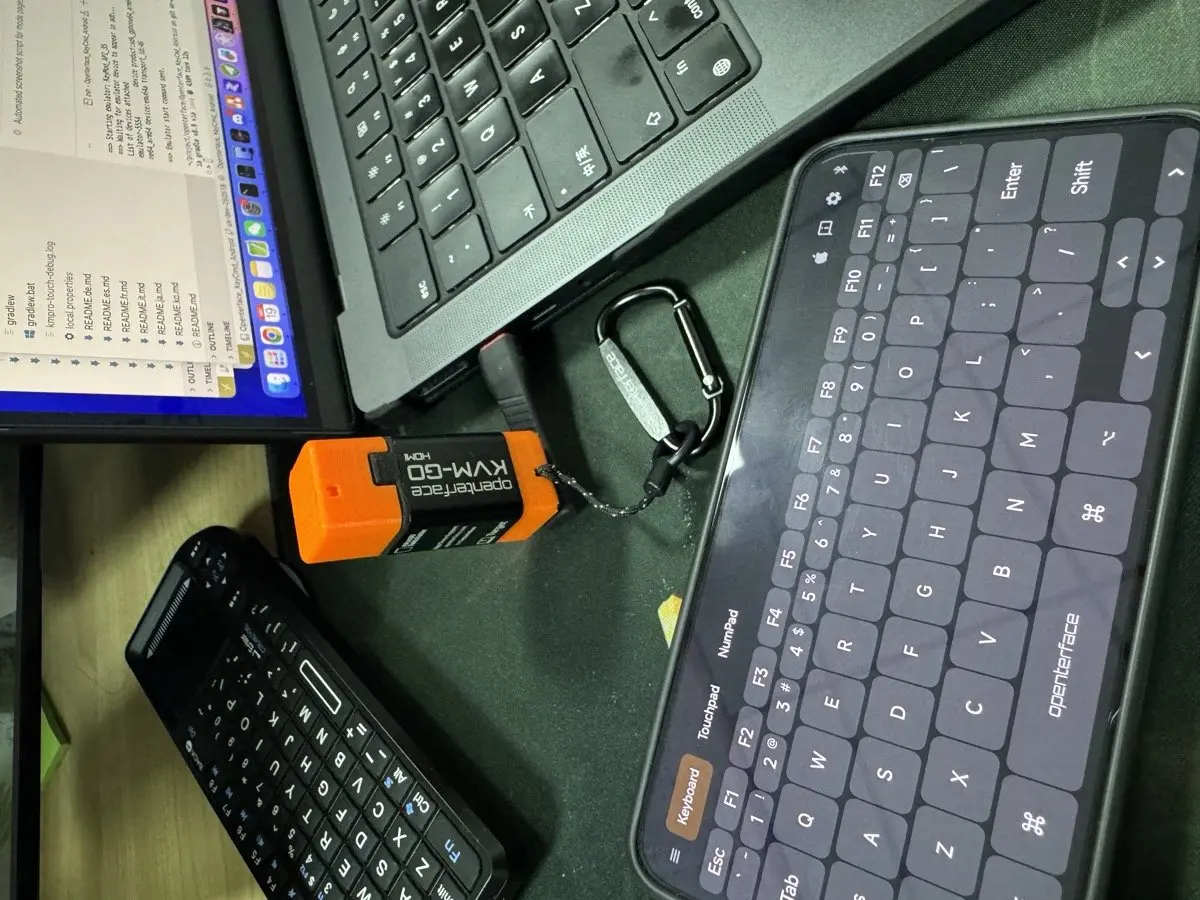
Below is what KeyCmd does with KVM-GO, which mode to open for which job, and how to get the most out of it on a real target machine.
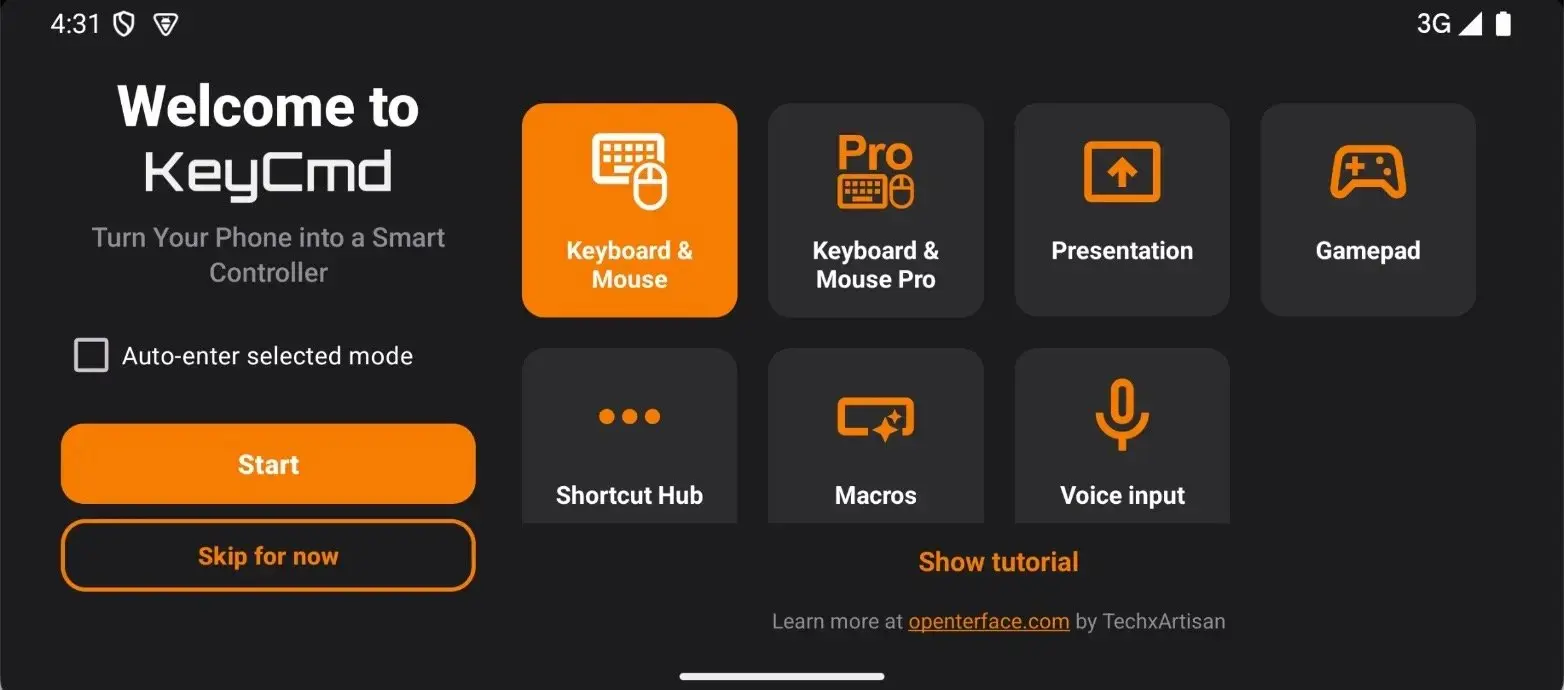
Modes and how to use them
Keyboard & Mouse (Basic)
Open this when you want a simple, full-screen keyboard and nothing else getting in the way.
Good for: BIOS passwords, short shell commands, numpad entry, or mouse control with a large touchpad while KVM-GO shows you the screen.
How to use it:
- Open KM Basic from the navigation drawer.
- Use the on-screen keyboard, numpad (portrait or landscape), or touchpad tab as needed.
- In Settings, choose sticky modifiers (tap to latch Shift/Ctrl) or chord-style modifiers if you prefer hold-and-tap combos.
Why it helps: more screen space for keys, less chrome, faster when you only need input and not shortcuts.
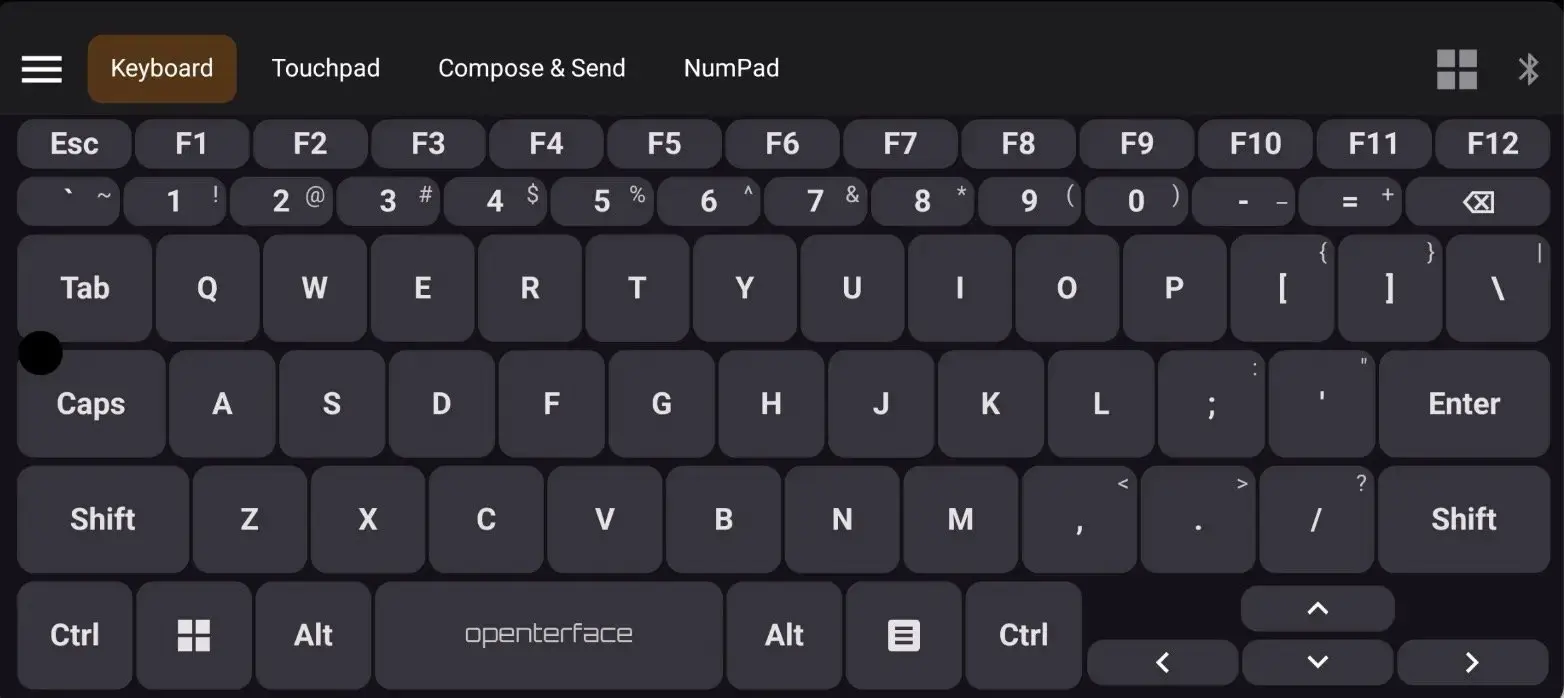
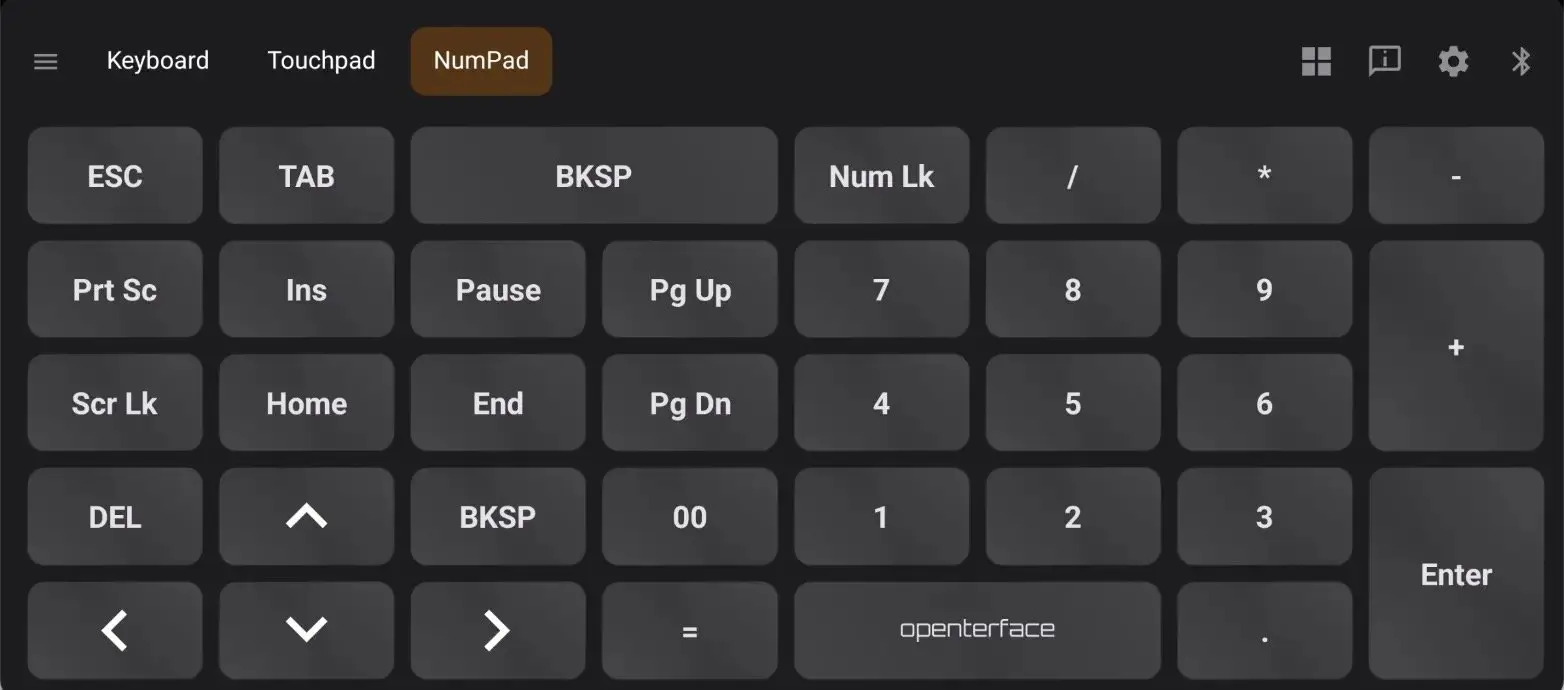
Keyboard & Mouse (Pro)
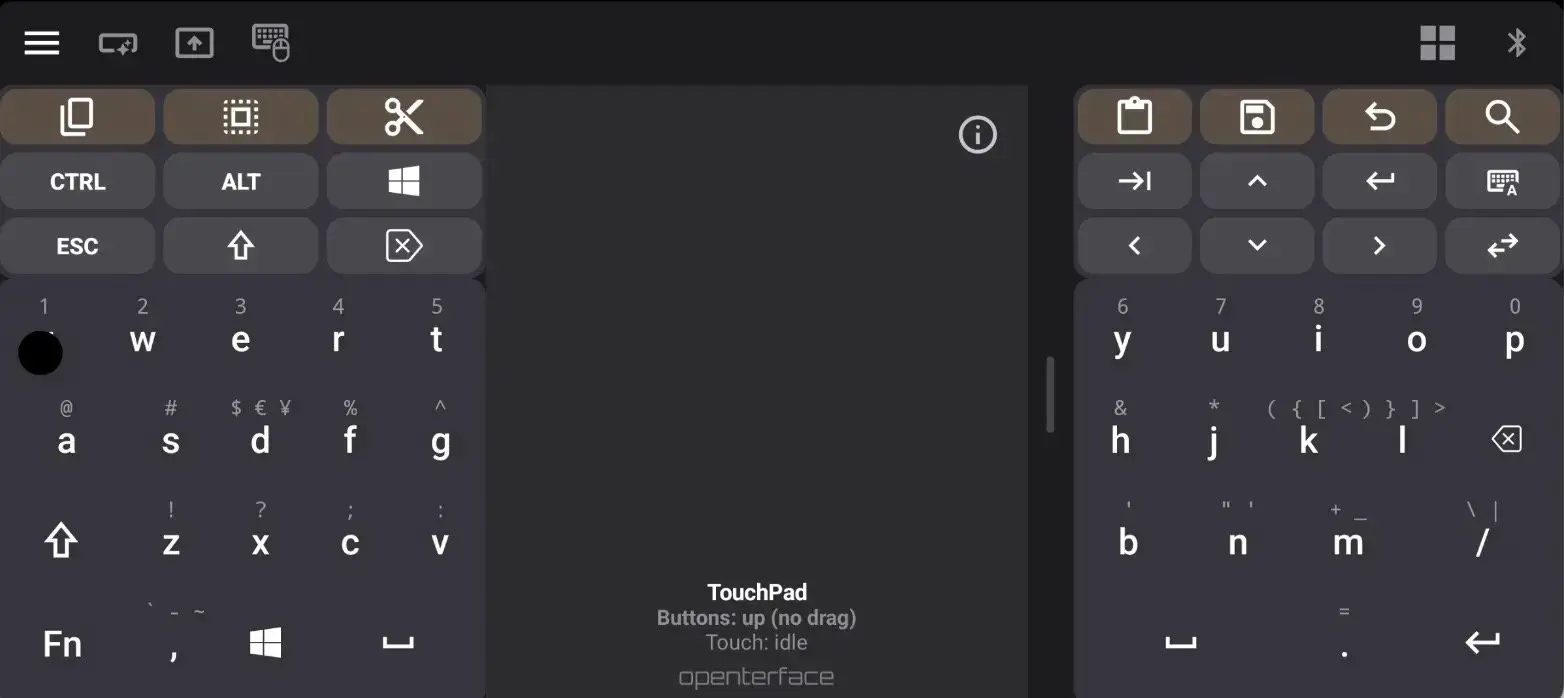
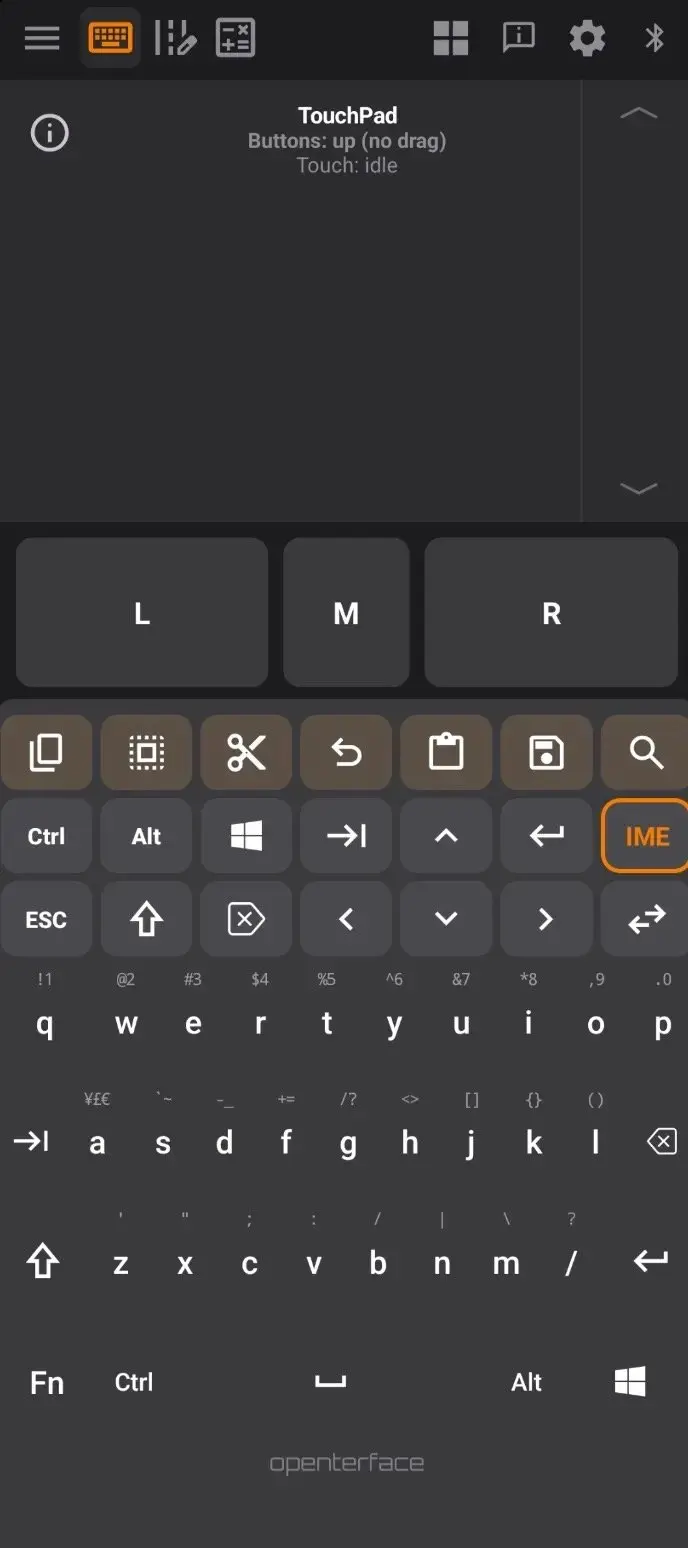
Open this for daily control work on machines behind KVM-GO: split keyboards, IME, Shortcut Hub strips, and the Compose editor.
Good for: longer typing sessions, macros and shortcuts, sending blocks of text or scripts to the host while you watch the result on the KVM view.
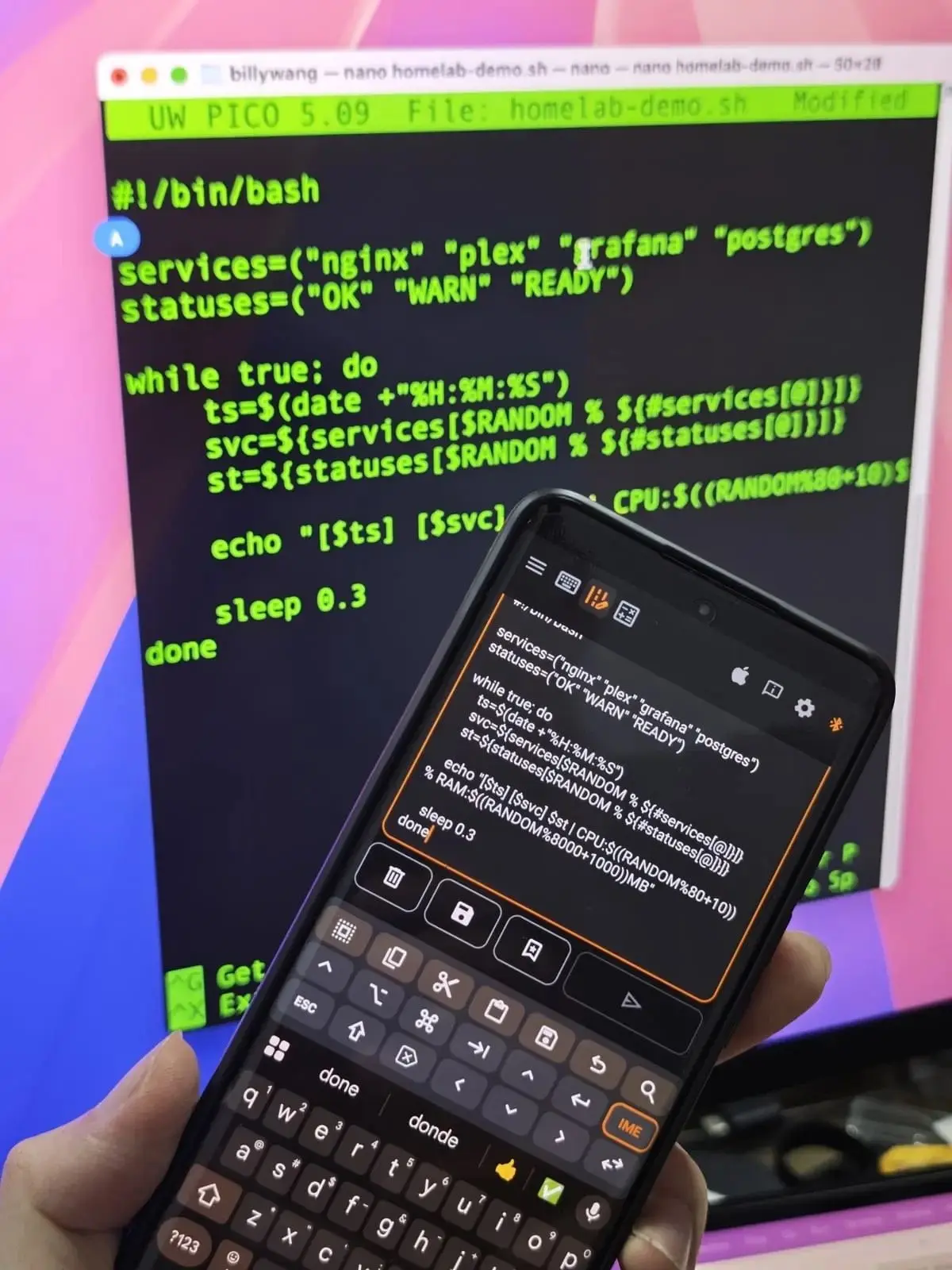
Compose is worth trying if you paste commands or scripts often: write on your phone, review, then send as keystrokes to the host. Short demo on YouTube shows the flow end to end.
How to use it:
- Open KM Pro from the navigation drawer.
- Use the keyboard and touchpad as in Basic, plus Shortcut Hub categories along the top for one-tap actions you set up in profiles.
- Open Compose to draft longer text on your phone, review it, then send as HID keystrokes. Long sends show a progress bar. If your text has non-ASCII characters, the app warns you before send so you can check host compatibility (helpful on macOS in particular).
Why it helps: one place for typing, pointing, shortcuts, and paste-like workflows without carrying a full keyboard to the target.
Gamepad
Open this when you want a virtual controller layout on screen, tuned for games or any app on the target that expects a gamepad.
Good for: emulators, casual games, or a compact control surface with sticks and buttons while KVM-GO handles the display.
How to use it:
- Switch to Gamepad mode.
- Tap Preset in the toolbar to cycle saved layouts. Long-press Preset to open the full list, import/export, or add modules (sticks, buttons, touchpads).
- Start from the bundled emu-6 preset and edit from there. You can add multiple touchpads and extra stick modules in one layout.
Why it helps: you are not stuck with one factory layout; save layouts per game or per machine and share presets with others.
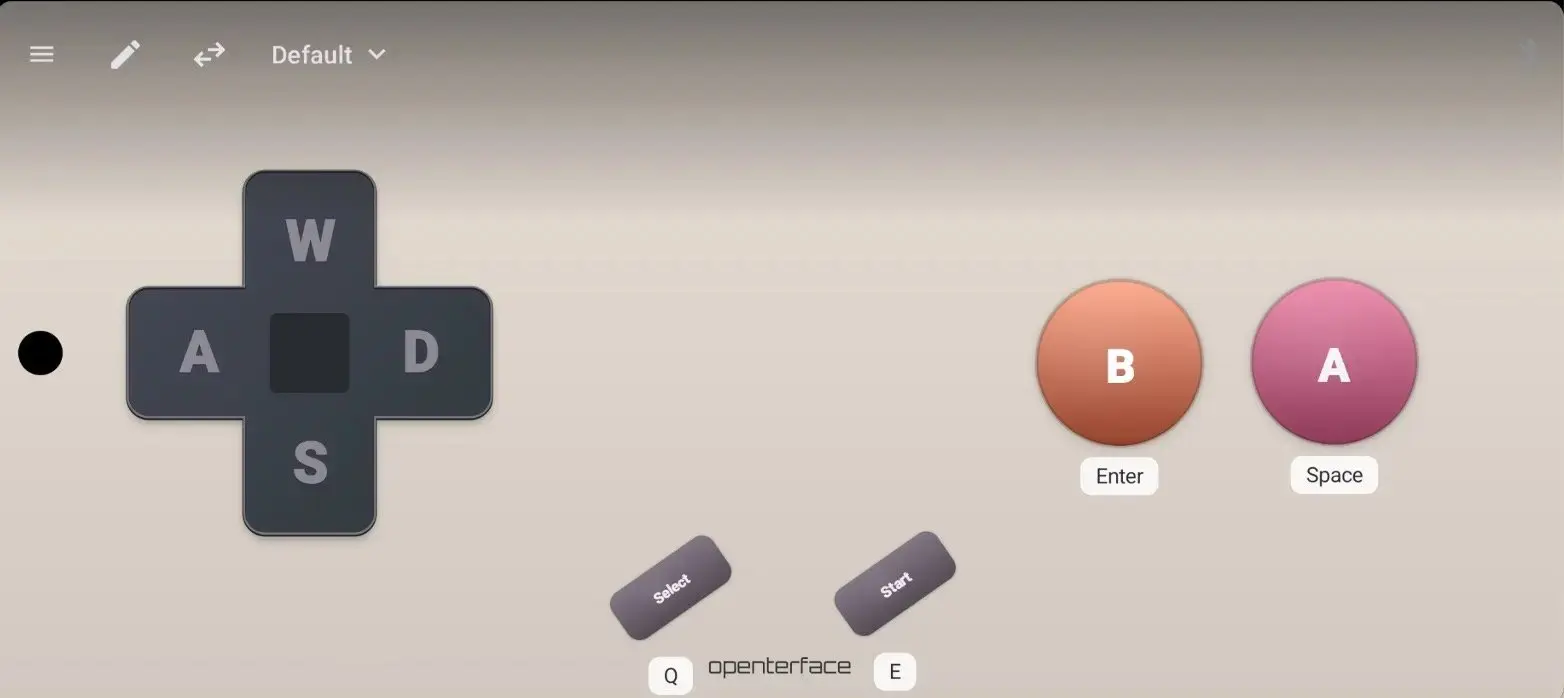
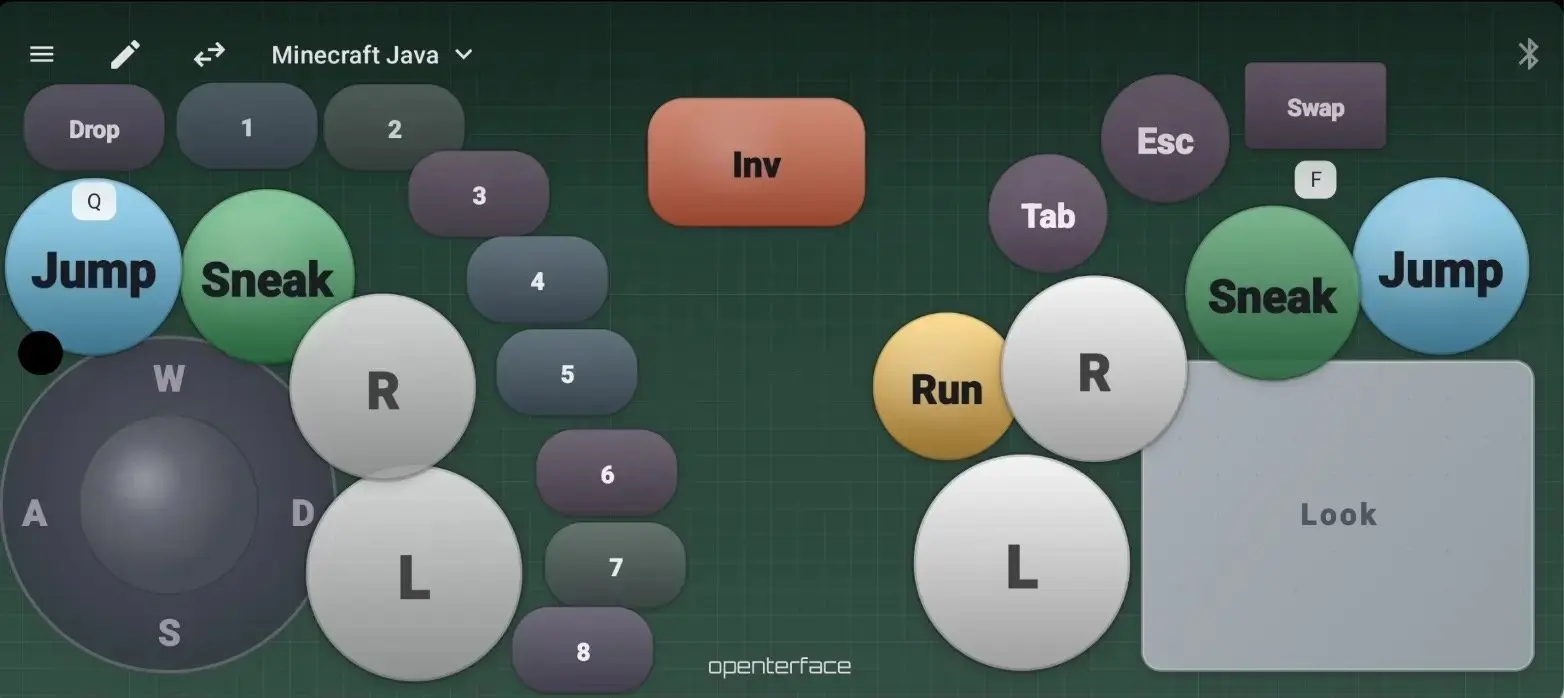
Customized preset for Minecraft.
Shortcut Hub
This is the profile and shortcut home inside KM Pro: categories, detail panels, and the shortcuts you assign to strips.
Good for: repeatable ops on the target (open terminal, paste a command chain, toggle settings) while KVM-GO stays connected for video.
How to use it:
- From KM Pro, work in the Default profile (or your own).
- Use category tabs and the detail UI to manage shortcuts.
- Run the Shortcut Hub guide tour if you are new to how profiles are organized.
Presentation
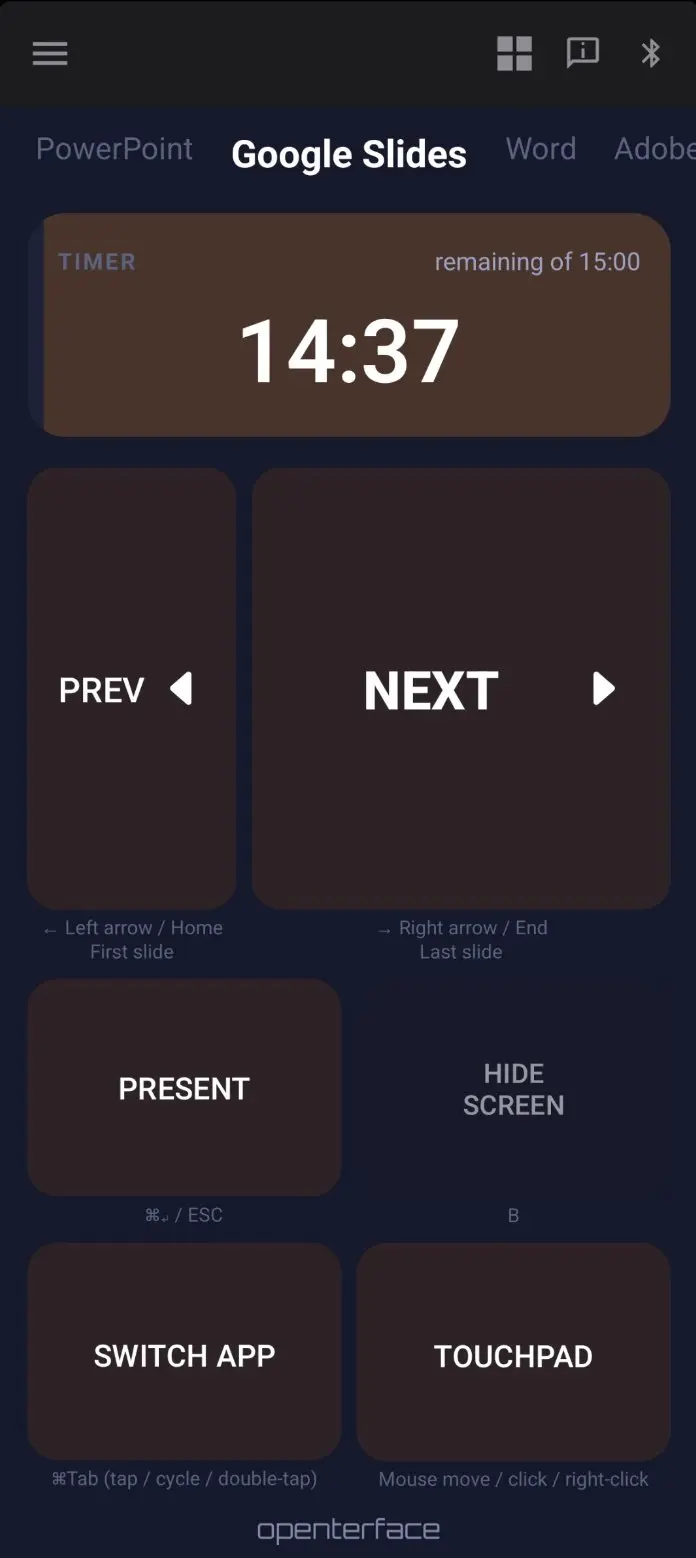
A simpler presenter-style control surface, kept in portrait so buttons do not jump when you rotate the phone.
Good for: stepping through slides or light presenter controls on the target.
Languages
The app UI is available in 11 languages. Recent additions: Korean, Italian, Russian, and Brazilian Portuguese.
Open Settings → App language to switch.
Get KeyCmd 0.19 and connect to KVM-GO
Download: KeyCmd-release-0.19.apk
Install over your existing app if you already have one. No need to wipe data.
Connect to KVM-GO (video port can stay unplugged):
For all three KVM-GO variants (HDMI, VGA, and DP), you do not need to plug the video connector on the dongle into anything for KeyCmd input. The HDMI, VGA, or DP port can sit empty. Pick either setup below.
Option A — Bluetooth (target powers KVM-GO)
- Plug the short black USB cable into the Target port on KVM-GO and into the machine you are controlling. That connection alone powers KVM-GO.
- On your phone, open KeyCmd and find KVM-GO over Bluetooth.
Option B — USB to your Android phone (host port)
- Plug the long orange cable from the Host port on KVM-GO into your Android phone.
- Open KeyCmd and connect over USB in the app.
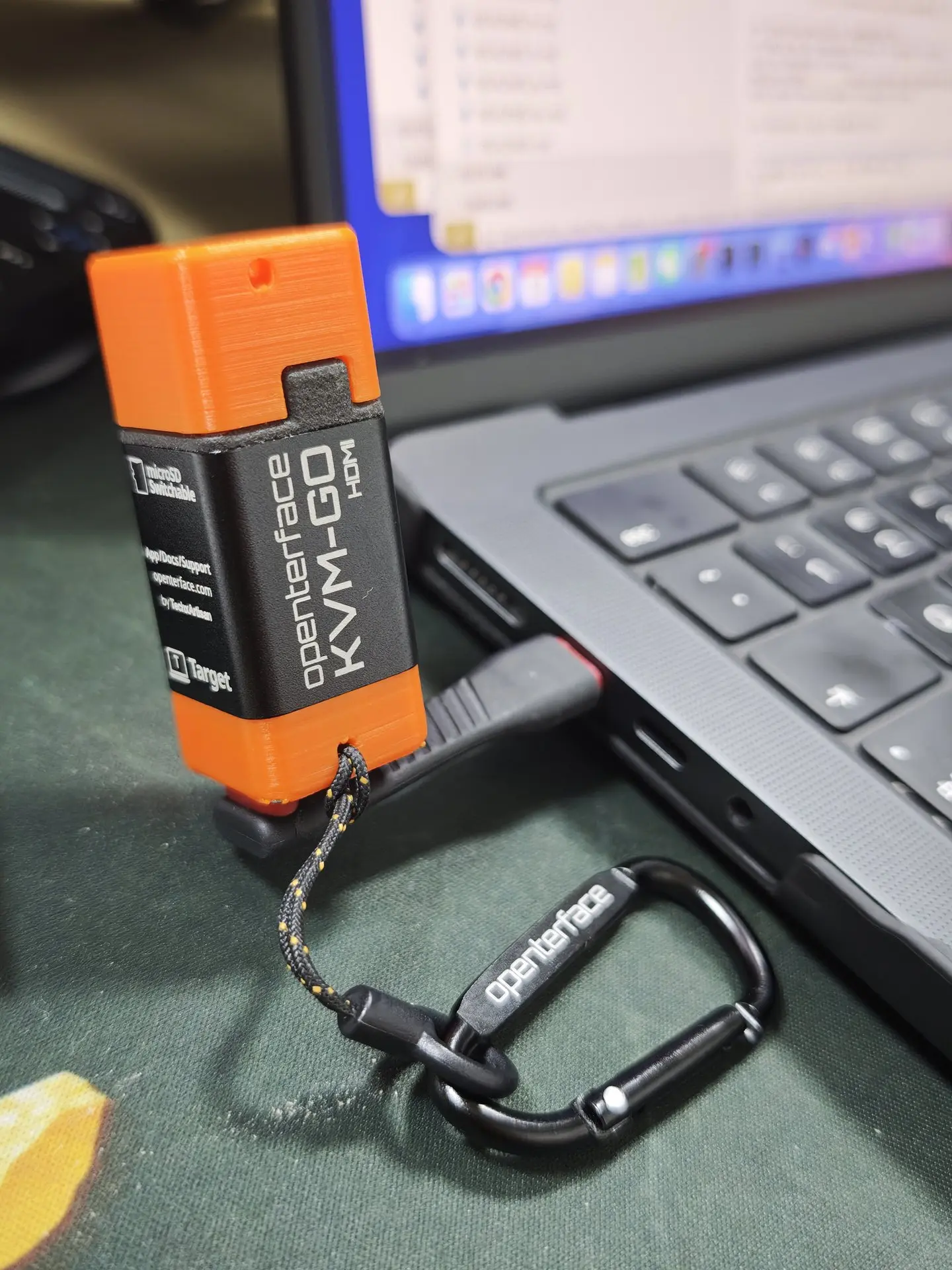
For full screen video plus input, use Openterface KVM for the target display and KeyCmd for keyboard, mouse, and shortcuts. KeyCmd alone is enough when the target already has its own display and you only need input.
Also works with Mini-KVM over USB if you use both devices.
Still beta. Gamepad presets and Compose sends can behave differently depending on the host OS. If something odd happens with KVM-GO, reach us on Discord with a screenshot, your KVM-GO variant (HDMI / DP / VGA), and what you expected.
Source code: Not public yet. We plan to open-source after crowdfunding milestones on related projects. Ask on Discord if you need help finding the APK.
About KeyMod (optional, separate from KVM-GO)
We are also developing KeyMod, a dedicated USB and Bluetooth HID dongle for the same KeyCmd app. KVM-GO backers do not need KeyMod for the workflows above; KeyCmd over KVM-GO is the path we want you on now.
If you are curious about a standalone dongle for non-KVM setups, you can follow the KeyMod campaign on Crowd Supply. That is separate from KVM-GO fulfillment.
We would love your feedback
If you have a few minutes, install KeyCmd 0.19, connect it to your KVM-GO (or Mini-KVM), and tell us what still feels awkward. Reports from crash-cart and homelab use cases go straight into our next releases.
Practical ways to help the KVM-GO project:
- Share what works in Discord or your community (BIOS tips, Bluetooth pairing, favorite modes)
- Tell a colleague who runs headless gear and could use a pocket KVM
- Keep sending honest feedback, especially rough edges. That shapes the product more than cheerleading
Thank you again for backing KVM-GO and for helping us make portable KVM-over-USB better for everyone.
Best regards,
Openterface Team | TechxArtisan